
#
Create an Account
To buy a product in the Phoeniqs portal and access our services, you must have an account.
#
Create an Account
#
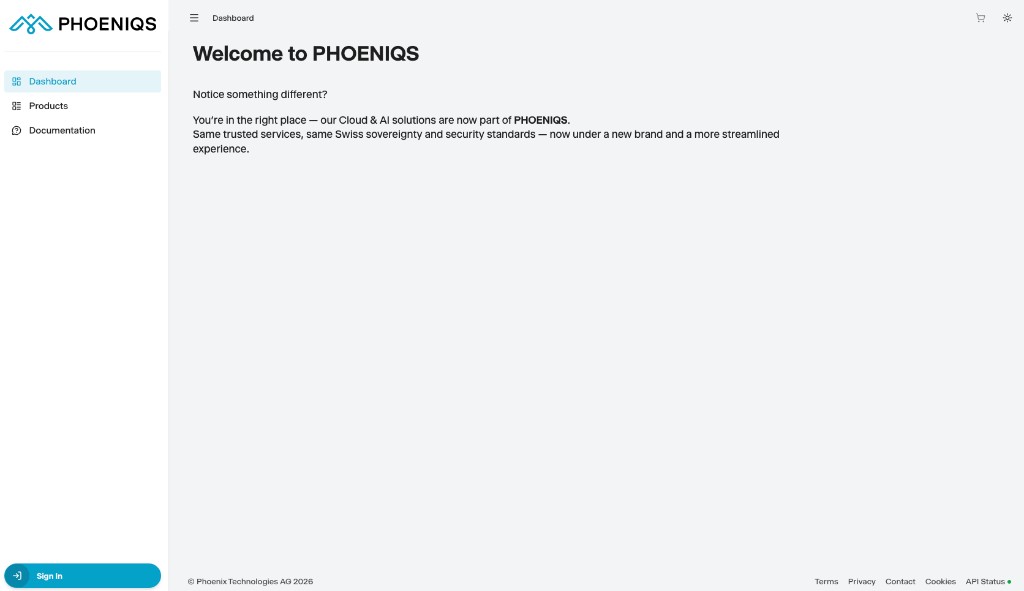
1. Go to the Phoeniqs portal
Navigate to https://console.phoeniqs.com.
#
2. Open the registration form
Click Sign In in the lower left corner. The Register menu will display.
#
3. Fill in your details
Enter your First name, Last name, Email, and a secure Password. Re-type your password in the Confirm password field.
#
4. Submit your registration
Click Sign in.
Note
With your registration, you agree to our Terms of Service and Privacy Policy.
#
Complete Two-Factor Authentication
#
1. Open your authenticator app
Once you sign in or create an account, a redirect will occur for Mobile Authenticator Setup. Do not close this window. On a separate device, open or download one of the authenticator app options listed.
Note
Since security is one of our priorities, Two-Factor Authentication (2FA) is required for all accounts.
#
2. Scan the barcode
In your authenticator app, scan the barcode shown on screen. A one-time authentication code will display.
#
3. Enter the code
In the Phoeniqs portal, type the code from your authenticator app into the One-time code field. Enter a name for your device in the Device name field, then click Submit.
Note
Once you submit successfully, a confirmation email will be sent to the address you provided.
#
Confirm Your Email
#
1. Check your inbox
Confirm that you have received a confirmation email from Phoeniqs.
Hint
Be sure to check your Spam folder if you don't see the email.
#
2. Confirm your email
In the email, click Confirm your email. The Phoeniqs portal login screen will display.
#
3. Log in
Log in to your account. If you have trouble, refer to the Log In to an Existing Account section above. The Phoeniqs portal, with any available subscriptions, will display.
#
Notes
tip Need help?
If you experience any issues or need assistance, please contact support.
#
See also